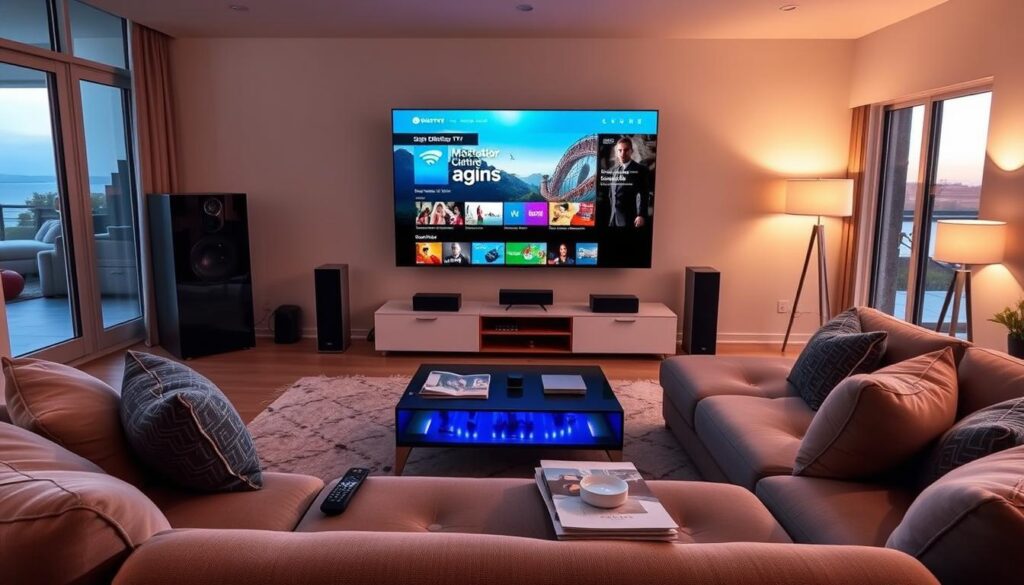
Imagine having your favourite shows, live sports, and blockbuster films one click away. With Monster Cable TV, you can access over 33,000 live TV channels, 40,000 movies, and 140,000 TV series. All content comes in stunning HD, Full HD, and 4K quality, with instant activation, no contracts, convenience, and flexibility.
Setting up your entertainment hub is straightforward: prepare your internet connection and check device compatibility. Install the relevant application, enter your activation details, and adjust the streaming settings. This monster cable tv service lets UK and international viewers enjoy live sports, films, and international channels in one place.
For smooth viewing, use a stable home internet connection and configure your equipment correctly. With Monster Cable TV, premium entertainment is just around the corner and easy to explore.
Key Takeaways
- Access to over 33,000 live channels and a vast library of films and series.
- Instant activation with no long-term contracts.
- Easy setup compatible with various devices.
- High-quality streaming options, including HD and 4K.
- Ideal for both UK and international viewers seeking diverse entertainment.
What Monster Cable TV Offers You
Monster Cable TV brings a wide choice of entertainment straight to your screen. It offers over 33,000 live TV channels, 40,000 movies, and 140,000 TV series. Monster Cable TV combines international channels, live sports, films, and series in one convenient platform.
A Massive Content Library at Your Fingertips
Live TV Channels from Around the World
Monster Cable TV gives you live channels from many countries. You can follow global news, sports events, and cultural shows with ease. The range includes British dramas, American sports, and many other programmes.
On-Demand Movies and TV Series
Alongside live TV, Monster Cable TV has a large on-demand library. Watch your favourite series or find new films whenever you want. Regular updates give you fresh programmes to enjoy.
Streaming Quality That Rivals the Cinema
HD, Full HD, and 4K Resolution Options
Monster Cable TV streams in HD, Full HD, and 4K. HD gives clear pictures, while Full HD makes them sharper. With a compatible device and fast internet, 4K brings cinema-quality pictures home.
Ultra-Stable Servers with No Buffering
Monster Cable TV uses ultra-stable servers for smooth viewing. They help you stream without interruptions or buffering. However, local network conditions can still affect playback quality.
Device Compatibility Across Your Entire Household
Smart TV, Firestick, and MAG Support
Monster Cable TV works with many devices, including Smart TVs, Firestick, and MAG boxes. This lets you watch your favourite content on the device that suits you.
Android, iOS, and PC Accessibility
You can also use Monster Cable TV on Android, iOS, and your PC. Watch favourite shows and films while travelling, so entertainment stays within reach.
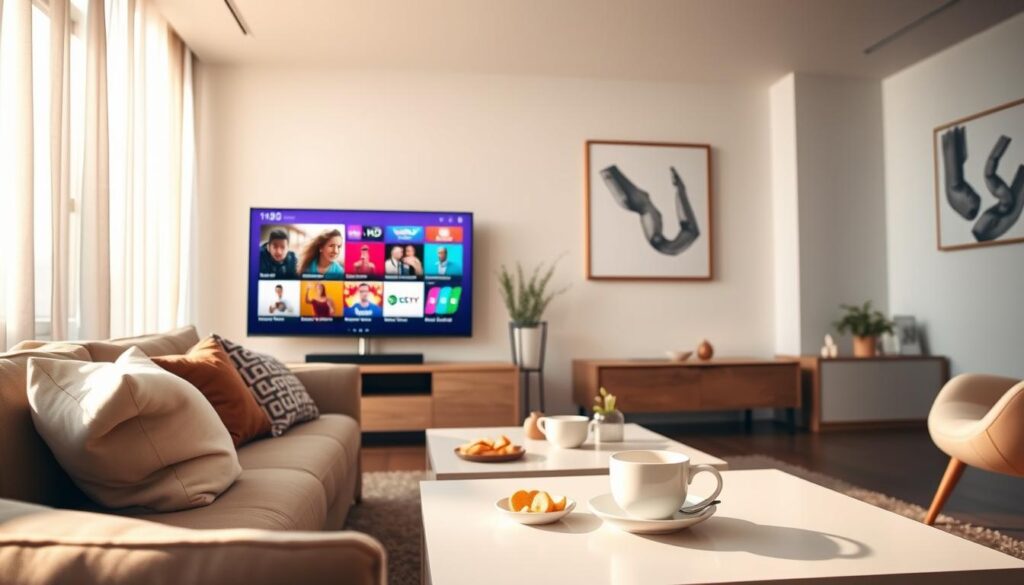
Preparing Your Home for Monster Cable TV Setup
Preparing your Monster Cable TV and cable television wiring takes care. These steps help create smooth streaming during installation.
Gathering the Equipment You Will Need
Gather the equipment before starting your setup. Having everything ready makes the process faster and easier.
Essential Tools and Cables
- Television
- Streaming device (e.g., Firestick, MAG box)
- Remote control
- Power supply
- HDMI lead
- Router and required network cables
Optional Accessories for Enhanced Performance
Essentials are necessary, but optional accessories may improve your viewing experience:
- Ethernet cables for a wired connection
- Surge protection to safeguard your devices
- Wi-Fi extenders for larger homes
Choosing the Right Location for Your Setup
Your equipment’s location affects streaming quality. Consider these points when choosing where to place it.
Proximity to Your Router and Television
Keep your streaming device near the television and router. This reduces delay and improves the connection.
Ventilation and Accessibility Considerations
Leave enough air space around your set-top boxes. Avoid enclosed areas, which can cause overheating. Keep the setup easy to reach for adjustments.
Confirming Your Internet Speed Requirements
A stable internet connection supports smooth streaming. Test its speed to check whether it meets your needs.
Minimum Speeds for Standard Definition
For standard definition streaming, a minimum speed of 3 Mbps is recommended.
Recommended Speeds for HD and 4K Streaming
For HD streaming, aim for at least 5-10 Mbps. 4K streaming needs at least 25 Mbps for optimal performance.
With suitable equipment, cable television wiring, and stable internet, you can enjoy the full benefits of Monster Cable TV. For more information on setup and subscriptions, visit Monster IPTV.
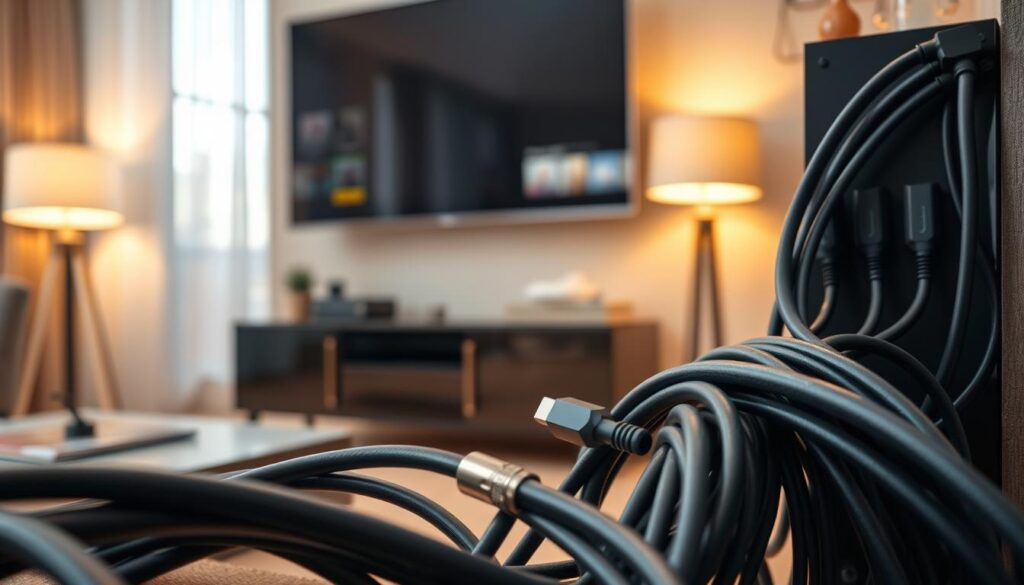
Installing RG6 Coaxial Cable for Optimal Signal
To ensure smooth streaming, proper RG6 coaxial cable installation is essential. A careful installation prevents signal loss and interruptions. This section guides you through effective rg6 cable installation.
Measuring and Cutting the Cable Accurately
Measure the distance from your wall outlet or distribution point to your television or compatible equipment. This measurement ensures you cut the cable correctly. Leave some slack for future adjustments.
Planning Your Cable Television Wiring Route
Before cutting, plan your cable route carefully. Choose an efficient path that avoids obstacles and keeps the cable short. This planning helps maintain a strong signal.
Leaving Slack for Future Adjustments
When cutting the cable, leave a little extra length. This slack helps if you reposition your equipment or make changes later.
Routing the Cable Through Your Home Safely
After cutting the cable, route it through your home. Take care to avoid damaging the cable.
Avoiding Sharp Bends and Kinks
Keep the cable free from sharp bends and kinks. These bends can weaken the signal and affect your viewing experience.
Keeping Cables Away from Heat Sources
Keep your coaxial cable away from heat sources, such as radiators. Heat can damage the cable and cause signal loss.
Avoiding Coaxial Cable Signal Loss
To maintain a strong signal, consider factors that cause coaxial cable signal loss.
Minimising Cable Length Where Possible
Shorter cable runs reduce signal loss, so minimise cable length whenever possible.
Selecting High-Quality RG6 Cable
Choose high-quality RG6 cable with proper shielding. This can reduce signal loss and improve your viewing experience.
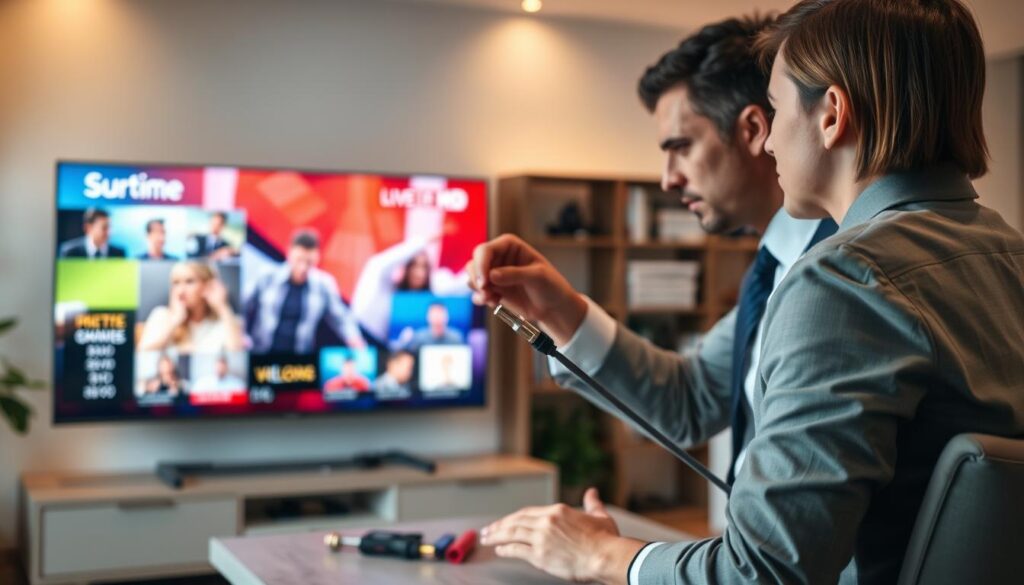
Connecting F-Type Connectors and Splitters Correctly
For reliable streaming, connect an f-type connector and splitters correctly. This guide helps you create an efficient, reliable setup.
Attaching F-Type Connectors with Precision
Attach f-type connectors carefully, and follow each step for a secure connection.
- Stripping the Cable to the Correct Length: Remove approximately 1 inch of the outer insulation from the coaxial cable. Be cautious not to damage the inner conductor or the dielectric material.
- Securing the Connector for a Tight Fit: Insert the stripped cable into the F-Type connector. Ensure it is fully seated and tighten it securely by hand, avoiding cross-threading.
Using Broadband and Television Splitters Effectively
Broadband and television splitters can send signals to several devices. Use them wisely to protect signal quality.
- Choosing the Right Splitter for Your Setup: Ensure that the splitter is compatible with your system. Look for specifications that match your requirements.
- Positioning Splitters for Minimal Signal Degradation: Place splitters as close to the source as possible to reduce signal loss. Each additional split can weaken the signal.
Ensuring Proper Impedance Matching
Impedance matching is vital for the best performance. Follow these key points.
- Understanding 75-Ohm Standards: Most coaxial cables and connectors are designed for 75-ohm systems. Ensure all components match this standard.
- Matching Connectors and Equipment Specifications: Check that your connectors and splitters are rated for 75 ohms to prevent signal issues.
Protecting Against Electromagnetic Interference
Electromagnetic interference can disrupt your signal. Use electromagnetic interference protection and follow these measures.
- Keeping Cables Away from Power Lines: Maintain a safe distance between coaxial cables and electrical power lines to avoid interference.
- Using Shielded Cables in High-Interference Areas: In environments with significant interference, opt for well-shielded cables to maintain signal integrity.
These guidelines help you set up your Monster Cable TV system with confidence. If wall wiring or electrical work becomes complex, consider professional help.

Setting Up Monster Cable TV on Your Smart TV
Watching Monster Cable TV on your Smart TV is simple and can improve your viewing experience. With a few steps, you can enjoy live channels, movies, and series in stunning HD, Full HD, or 4K. Here’s how to begin.
Downloading and Installing the Monster Cable TV App
Navigating Your Smart TV App Store
First, turn on your Smart TV and open its app store, usually found in the main menu or home screen. Use its search tool to find the Monster Cable TV app. Check the app details to confirm it is the official version.
Completing the Installation Process
After finding the app, select it and choose install. It will download and install automatically. When finished, its icon will appear on your home screen, ready to use.
Activating Your Subscription on the Big Screen
Entering Your Activation Code
Open the Monster Cable TV app to activate your subscription. You may need to enter an activation code. You can usually find this code in your account settings on the Monster Cable TV website, so enter it carefully.
Logging In to Your Monster Cable TV Account
After entering the activation code, log in with your Monster Cable TV account details. If you do not have an account, create one through the app. Keep your login details private and secure.
Configuring Display and Audio Settings
Selecting Your Preferred Resolution
Once logged in, open the app’s settings menu. Choose your preferred resolution there. For the best view, select the highest resolution supported by your TV and internet connection.
Adjusting Audio Output for Your Sound System
Next, adjust the audio output settings. Select your TV speakers if you use them. For soundbars or AV receivers, select the correct HDMI or optical input to improve Monster Cable TV audio.
Configuring Monster Cable TV on Firestick, Android, and iOS
Configure monster cable tv on Firestick, Android, and iOS devices with ease. This setup lets you watch live sports, films, and series wherever you are. The process is simple, whether you are at home or travelling.
Setting Up Monster Cable TV on Amazon Firestick
Follow these steps to set up monster cable tv on your Firestick.
Enabling Unknown Sources for Installation
Before installing the app, enable installations from unknown sources. Follow these steps.
- Go to Settings on your Firestick.
- Select My Fire TV.
- Choose Developer Options.
- Turn on Apps from Unknown Sources.
Launching Monster Cable TV on Firestick
After enabling unknown sources, download the monster cable tv app.
- Open the Downloader app.
- Enter the URL for the Monster Cable TV app.
- Follow the prompts to install the app.
Installing Monster Cable TV on Android Devices
Android users can install monster cable tv in a few simple steps.
Downloading from the Google Play Store
Open the Google Play Store and search for Monster Cable TV. Select Install to download the app.
Granting Necessary Permissions
After installation, the app may request certain permissions. Approve only the permissions needed for the app to work correctly.
Configuring Monster Cable TV on iOS Devices
Use these steps to start monster cable tv on an iOS device.
Installing via the Apple App Store
Open the Apple App Store and search for Monster Cable TV. Tap Get to download the app.
Signing In and Starting Your First Stream
After installing the app, open it and sign in with your credentials. If problems arise, restart the app or check for updates. Check your internet connection and confirm your subscription credentials are correct.
Remember: Avoid unverified downloads to protect your account details. For more help, visit the Xfinity support page for troubleshooting tips.
These steps let you enjoy monster cable tv on Firestick, Android, or iOS. You can keep up with your favourite shows and live sports.
Using Monster Cable TV on MAG and PC
Use monster cable tv on your MAG device or PC to access live TV, films, and series. Its fast servers support smooth streaming and high-performance service.
Configuring Your MAG Box for Monster Cable TV
To use monster cable tv on your MAG device, configure your MAG box correctly. This step lets you access the content without problems.
Entering the Portal URL
Open the portal configuration option in your MAG device menu. Enter the exact portal URL given after your subscription or activation, and check each character.
Saving and Restarting Your MAG Device
After entering the portal URL, save your profile. Restart your MAG box so the settings load and you can access monster cable tv.
Setting Up Monster Cable TV on Your PC or Laptop
PC and laptop users can access monster cable tv with ease. Use a supported web browser for instant access, or download the official desktop application if available.
Using a Web Browser for Instant Access
To watch monster cable tv in a web browser, visit the official site. Update your browser to the latest version for the best performance.
Downloading the Desktop Application
If you prefer a desktop application, check whether Monster Cable TV offers one. An application may improve viewing, especially with a wired connection for stability.
For the best streaming experience, update your browser or application and close bandwidth-heavy programmes during playback. Monster Cable TV’s high-performance servers support smooth streaming, but your network and device also matter.
Choosing the Right Monster Cable TV Subscription Plan
Choosing a monster cable tv subscription plan can improve your viewing experience. Several options help you match a plan to your household’s needs. Every plan offers flexibility, instant activation, and promotional periods.
One Connection Packages
One-connection packages suit individual viewers or homes with one device. They provide a practical starting point:
- 1-Month Plan: £15
- 3-Month Plan: £34 with one month free
- 6-Month Plan: £44 with two months free
- 12-Month Plan: £69 with three months free
Two Connection Packages
Two-connection packages suit households with several viewers:
- 1-Month Plan: £20
- 3-Month Plan: £46 with one month free
- 6-Month Plan: £74 with two months free
- 12-Month Plan: £115 with three months free
Three Connection Packages
Three-connection packages suit larger families and homes with several streaming devices:
- 1-Month Plan: £34
- 3-Month Plan: £69 with one month free
- 6-Month Plan: £99 with two months free
- 12-Month Plan: £145 with three months free
Four Connection Packages
Four-connection packages suit busy households with several viewers:
- 1-Month Plan: £40
- 3-Month Plan: £89 with one month free
- 6-Month Plan: £120 with two months free
- 12-Month Plan: £170 with three months free
Every monster cable tv plan includes no contracts and instant activation. Longer plans include free months, which can help budget-conscious viewers save money.
Choose your plan based on the number of devices or household viewers. Review the current terms and confirm the displayed currency before paying.
Conclusion
Monster Cable TV brings over 33,000 live channels, 40,000 movies, and 140,000 TV series to your screen. Watch this large library in HD, Full HD, or 4K quality. It works with Smart TVs, Android, iOS, Firestick, MAG, and PC, so you can watch wherever you are.
Smooth streaming needs a fast, ultra-stable internet connection. Setup is simple, with instant activation and no contracts. Prepare your home with the right installation method, suitable cables, and connectors, then test playback before choosing your resolution.
Monster Cable TV suits UK and international viewers seeking live channels, sports, films, and series. Choose a connection plan for your household, then follow the official activation instructions. Start streaming when your account and device are ready; read the terms of service to learn about all available features.