

Picture yourself in your living room, with the television’s soft glow filling the space. With Monster IPTV, you can access over 33,000 live TV channels, 40,000 movies, and 140,000 TV series. All content comes in HD, Full HD, and 4K quality.
The service lets you enjoy favourite shows and films without complex installation or technical knowledge. Its ultra-stable servers provide smooth streaming without buffering, so you can start watching at once.
You can watch monster IPTV channels on devices you own, including Smart TV, Android, iOS, Firestick, MAG, or PC. There are no contracts, and activation is instant, making it suitable for UK and international viewers.
This guide explains the process, from checking your equipment and internet connection to choosing a plan and fixing common issues. With Monster IPTV, premium entertainment is only a few clicks away.
Key Takeaways
- Access over 33,000 live TV channels and 140,000+ TV series.
- Enjoy content in HD, Full HD, and 4K quality.
- Instant activation with no contracts required.
- Compatible with various devices including Smart TVs and PCs.
- Experience ultra-stable servers for smooth streaming.
What Monster IPTV Channels Offer You
Monster IPTV channels offer thousands of entertainment choices for every taste. With over 33,000 live TV channels, 40,000 movies, and 140,000 TV series, everyone has options. This wide library includes live television categories, live sports, films, and series.
Monster IPTV offers these live television categories:
- News
- Entertainment
- Sports
- Documentaries
- Children’s programming
- International channels
Your selected plan and current availability may affect each category. Live channels differ from video-on-demand content, so you can watch live events, films, and series together.
An Overview of the Content Library
Monster IPTV has a rich content library and suits many viewers. Its wide range of genres helps everyone in your household find something to enjoy. With so many choices, boredom becomes a thing of the past.
Streaming Quality and Server Performance
Monster IPTV offers HD, Full HD, and even 4K viewing for a visually stunning experience. Your quality depends mainly on the source stream, your device, and internet performance.
Fast, ultra-stable servers support the service, helping live television categories stream smoothly with few interruptions. Their reliability helps make Monster IPTV a preferred choice for many users.
Designed for UK and International Viewers
Monster IPTV serves both UK and international viewers. Households can access local programming and overseas content in one well-rounded viewing experience. Whether you enjoy British dramas or international sports, Monster IPTV has you covered.
“With Monster IPTV, you can truly customise your viewing experience to suit your lifestyle.”
Preparing Your Devices and Internet for Monster IPTV Channels
Prepare your devices and internet connection before enjoying Monster IPTV channels. This can support smooth viewing with fewer interruptions. Follow these key steps before setup.
Checking Device Compatibility
First, confirm your streaming device compatibility with Monster IPTV channels. Use this checklist to guide you:
- Operating System: Ensure your device runs a supported OS, such as Android, iOS, or the latest version of Smart TV software.
- Available Storage: Check that your device has enough storage space for the IPTV application.
- App Support: Verify that the IPTV app you plan to use is available on your device’s app store.
- Screen Resolution: For optimal viewing, your device should support at least HD resolution.
- Network Connection Options: Ensure your device can connect to Wi-Fi or has an Ethernet port for a wired connection.
Meeting Internet Bandwidth Requirements
Your internet connection affects streaming quality. Check these internet bandwidth requirements before you begin:
| Quality | Recommended Bandwidth | Notes |
|---|---|---|
| SD (Standard Definition) | 3 Mbps | Suitable for basic viewing. |
| HD (High Definition) | 5-10 Mbps | Recommended for clear images. |
| 4K (Ultra High Definition) | 25 Mbps | Requires a stable and fast connection. |
For the best experience, use a stable broadband connection. Choose wired Ethernet or a strong 5 GHz Wi-Fi signal when possible. 4K needs more capacity and stability than HD, while other household activities may affect playback.
Gathering What You Need Before Setup
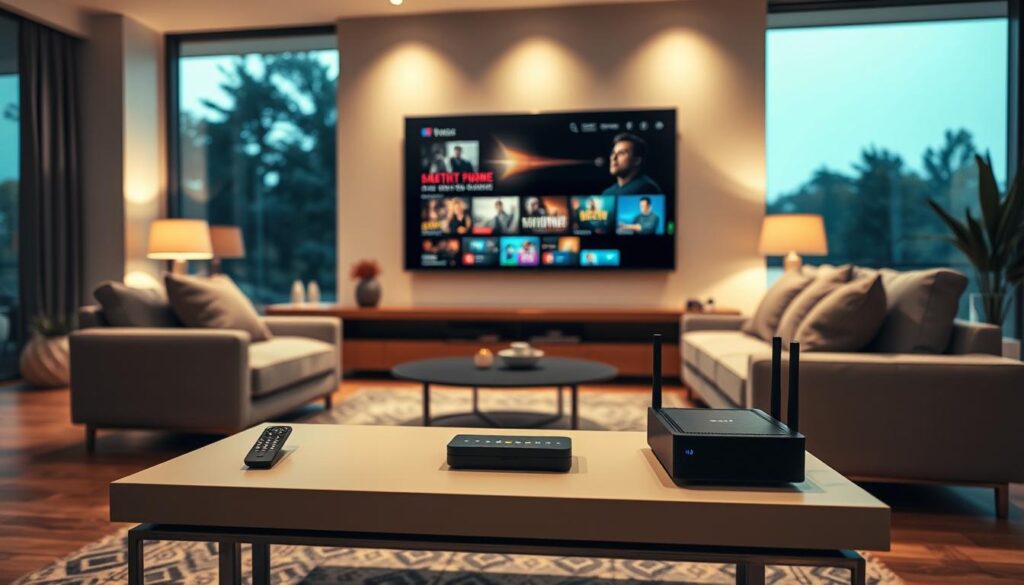
Before installation, gather these items:
- Your active subscription credentials for Monster IPTV.
- A compatible IPTV application installed on your device.
- A remote control or keyboard for easy navigation.
- Your router details to ensure a stable connection.
These items can reduce login, installation, and buffering problems. They can also make setup smoother.
Choosing the Right Monster IPTV Subscription Plan
Choosing a Monster IPTV subscription plan can improve your viewing experience. Comparing the available plans helps you make an informed choice.
1 Connection Plans
The 1 Connection Plan suits people who watch on one device. It costs £15 for 1 month and offers an affordable way to start using IPTV.
2 Connection Plans
The 2 Connection Plan suits homes with several viewers. It costs £34 for 3 months, includes 1 month free, and lets several viewers share the service.
3 Connection Plans
The 3 Connection Plan suits families and viewers who need flexibility. It costs £44 for 6 months, includes 2 months free, and supports up to three devices.
4 Connection Plans
The 4 Connection Plan suits large households and keen streamers. It costs £69 for 12 months, includes 3 months free, and lets everyone watch favourite shows together.
Selecting the Best Value Option
Think about your viewing habits and how many devices you will use. Longer subscriptions often offer better value if you use the service regularly. Compare your needs and prices to choose the right iptv subscription setup.
Setting Up Monster IPTV Channels on Smart TV
Set up Monster IPTV Channels on your Smart TV with ease. Follow these three steps to watch live TV, films, and series in stunning quality.
Step 1: Download the IPTV Smarters or Smart IPTV App
Open your Smart TV’s official app store. Search for either IPTV Smarters or Smart IPTV, based on your preference and availability. Download and install your chosen app.
Step 2: Enter Your Subscription Credentials
After installation, open the app and enter the login details received with your Monster IPTV Channels subscription. Enter your username, password, server URL, and playlist details carefully. These details activate the service.
Step 3: Load the Channel List and Start Watching
Save your profile and let the app load the channel list. Loading may take a moment. If channels do not appear, restart the app, then browse the available live channels, films, and series.
For the best performance with Monster IPTV Channels, check that your TV’s date and time settings are correct. Test an HD stream before watching 4K content, to confirm everything works smoothly. Do not share your login details, and download apps only from the official app store.
| Step | Action | Tips |
|---|---|---|
| 1 | Download App | Use official app store for safety. |
| 2 | Enter Credentials | Double-check your login details. |
| 3 | Load Channels | Restart app if channels don’t appear. |
“The best way to predict the future is to create it.”
Setting Up Monster IPTV Channels on Firestick
Setting up Monster IPTV Channels on your Firestick is simple and improves your viewing experience. You can watch live sports, films, and series through fast servers and smooth streaming, without a long contract.
Follow these simple steps to get started:
Step 1: Install the Downloader App and Enable Unknown Sources
First, install the Downloader app from the Amazon Appstore. It lets you sideload apps that are unavailable in the store. To continue, open Firestick settings, choose “My Fire TV,” then “Developer Options,” and enable “Apps from Unknown Sources.”
Step 2: Sideload the IPTV Application
Next, sideload the IPTV application. Get the app from your provider’s official instructions or a reputable source. Avoid unknown websites, and follow your Fire OS version’s instructions.
Step 3: Configure Your Monster IPTV Channels Login
Once installed, open the app and choose your preferred login method. Enter your Monster IPTV Channels credentials carefully, then wait for the playlist or portal data to synchronise. For best performance, use a reliable Ethernet connection or strong Wi-Fi signal.
Restart your Firestick after installation so all changes take effect. Test one channel before browsing the full catalogue to check that everything works smoothly. App availability and source permissions may change; follow official guidance and UK rules, then read Monster IPTV Terms of Service.
Setting Up Monster IPTV Channels on Android and iOS
Setting up Monster IPTV channels on Android or iOS is simple. With a suitable app and your subscription details, you can watch live television, films, and series anywhere. This guide explains how to begin.
Step 1: Install the IPTV App from Google Play or App Store
Download a compatible IPTV player from Google Play Store or the Apple App Store. Check the developer name, ratings, permissions, and update history before installing it. These checks help you choose a reliable application that suits your needs.
Step 2: Add Your Monster IPTV Channels Playlist
After installation, open the app and enter the playlist or provider login details from your Monster IPTV subscription. Enter the server address and account details carefully to prevent connection problems.
Step 3: Navigate the Electronic Programme Guide
After adding your playlist, open the electronic programme guide (EPG). It shows current broadcasts, upcoming programmes, and detailed programme information. You can switch between live channels and on-demand content, save favourite shows, and adjust playback quality for mobile data.
Your selected connection plan decides how many devices you can use at once. For the best viewing experience, especially with HD and 4K content, use a stable Wi-Fi connection.
| Device Type | Recommended App | Key Features |
|---|---|---|
| Android | IPTV Smarters | Easy navigation, EPG support, multi-screen viewing |
| iOS | Smart IPTV | User-friendly interface, live TV streaming, favourites management |
| Both | Perfect Player | Customisable settings, EPG integration, multiple playlist support |
For installation help, visit this page. For privacy concerns, read our privacy policy.

Setting Up Monster IPTV Channels on MAG and PC
Setting up Monster IPTV Channels on MAG boxes and PCs is straightforward when you follow these steps. This guide helps you set up Monster IPTV Channels and manage channel list updates on MAG devices and computers. High-performance servers support smooth streaming across various devices.
Step 1: Configure the MAG Box Portal Settings
MAG users should first configure portal settings. Enter the specific portal URL in your device’s network settings, copying it precisely to avoid access problems. Then restart your MAG box and confirm its internet connection to retrieve account information and support channel list updates.
Step 2: Set Up Monster IPTV Channels on Windows or Mac
If you use a Windows PC or Mac, install a compatible IPTV player or use the provider’s supported web-based method. Enter the supplied playlist or login information to access Monster IPTV Channels and receive channel list updates. Many users prefer applications with user-friendly interfaces, which make navigation easy.
Step 3: Verify Your Channel List Updates
After setup, verify channel list updates loaded correctly by checking categories, search options, favourites, programme information and new content. If incomplete, refresh the playlist or restart the application, then check your active subscription. If problems persist, contact support instead of entering incorrect credentials repeatedly; server performance and local network quality affect playback quality.
“Smooth streaming is a combination of reliable servers and a stable internet connection.”
| Device Type | Setup Method | Key Considerations |
|---|---|---|
| MAG Box | Enter portal URL | Ensure internet connection |
| Windows PC | Install IPTV player | Use provided playlist |
| Mac | Web-based method | Check compatibility |
For more information about setting up Monster IPTV Channels and channel list updates, visit this link.
Troubleshooting Common Setup Issues
Setup problems can seem daunting, but knowing common faults makes them easier to solve. With Monster IPTV Channels, you may face several challenges. Here is how to handle them.
Fixing Buffering and Streaming Problems
Buffering is frustrating when you expect smooth streaming. First, check your internet connection and ensure it has enough bandwidth. Pause other downloads or streaming services running at the same time.
If you use Wi-Fi, move closer to your router or switch to an Ethernet connection if possible. Temporarily lower the playback quality, then restart your router and IPTV application.
Even the best Monster IPTV Channels servers cannot overcome weak Wi-Fi or an overloaded home network. A stable connection remains essential.
Resolving Login and Activation Errors
You can often fix login and activation errors with a few simple checks. Check your username and password carefully, including spelling and capitalisation. Confirm your subscription is active and that you use the correct server details.
Check your device’s date and time, because incorrect settings can cause login problems. Avoid repeated failed attempts, which may lock your account. If problems continue, contact your provider with your device details and exact error message.
Updating Your Channel List Regularly
Regularly update your channel list to access the latest content. Refresh or reload your playlist through the IPTV application settings. If the app is outdated, updating it can also solve many problems.
Restarting your device can help apply these changes. Finally, confirm your subscription remains active to prevent service interruptions.
Conclusion
Monster IPTV offers over 33,000 live TV channels, 40,000 movies, and 140,000 TV series. All are available in HD, Full HD, and 4K. It works with Smart TVs, Android, iOS, Firestick, MAG, and PCs, so it suits all users. Instant activation means you can enjoy the service without contracts or hassle.
First, choose a connection plan that suits your viewing habits. Check that your devices and internet connection meet all necessary requirements, then follow the setup process. Download the right application or configure the relevant portal, enter your subscription credentials, load the channel list, and enjoy your favourite content.
If problems occur, use the troubleshooting steps to fix common playback or activation issues. Check your channel list regularly for updates, and stay informed about your plan terms and content availability. Monster IPTV offers a flexible entertainment solution tailored to UK and international viewers.